.png?width=100&height=100&name=Untitled%20design%20(8).png)
Before installing the OPA Agent, check if your system meets the necessary prerequisites. You can verify system readiness using the PreInstallOPATest application.
Step 1: Download & Run the PreInstallOPATest Application
Download the PreInstallOPATest zip file.
Unblock the file (Right-click > Properties > Check "Unblock" if available).
Extract the contents of the zip file.
Run the application as an administrator (Right-click > "Run as administrator").
If you run tool in “not admin” mode, you will see a notification. You can restart tool “As Administrator” with “Run as Admin” button
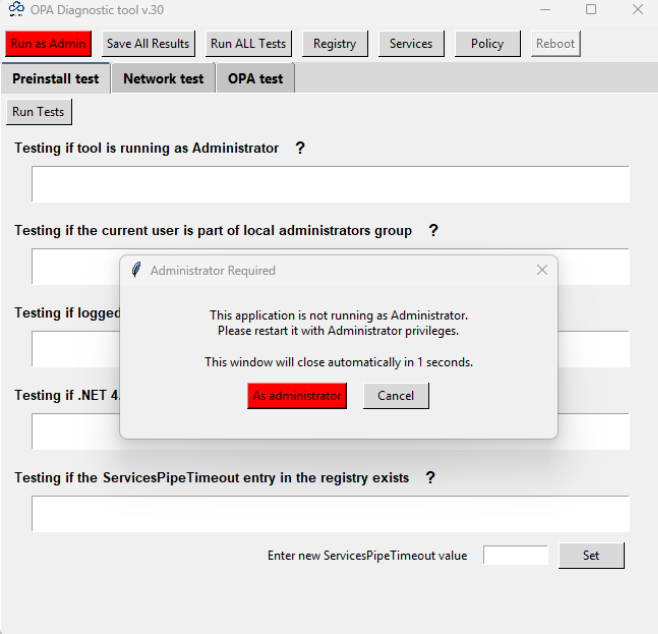
Step 2: OPA Preinstall Test tab
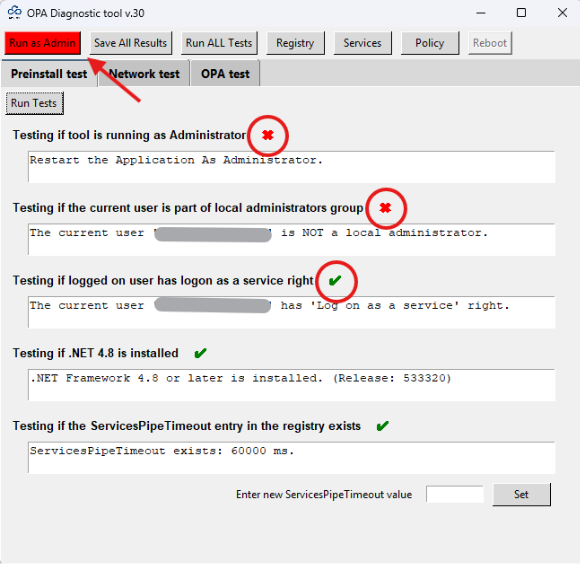

System Check & Recommendations
The PreInstallOPATest application will scan your system and identify any missing prerequisites. Failed tests are marked in red, passed in green. It checks the following:
-Application Privileges:
- Is the application running “as administrator”?
- Does the current user have administrator privileges?
- Does the current user have the right to log on as a service?
-System Requirements:
- Is .NET Framework installed? OPAgent needs .NET 4.8
- Is the ServicesPipeTimeout registry setting configured correctly? This is the waiting time for the service to start, for the agent it should be 60000-120000 ms.
You can change it right from the application, enter new value to the field at the bottom of the window and press set. Reboot is necessary. You can reboot your PC from the tool with “Reboot” button. The “Reboot” button is marked in red if PC pending for reboot
The tool allows you to open Services, Registry Editor and Group Policy directly for making necessary changes, for example give the user “logon as service” rights or restart the Agent service.
Step 3: the Network tests tab

These tests allow to check your network:
- Is the site Cloudsfer.com accessible? Check your firewall/proxy/DNS if not accessible
- Are the required ports open? Port range 32000-34048 should be open on your firewall/proxy for outbound traffic
- What is the current external IP address? This may help the support service to perform diagnostics on the server side.
Step 4: OPA test tab (after installation test)
Also, you can perform a diagnostic, in case of any OPA connectivity or disk mapping issues after installation

It checks the following:
- OPAgent service status. Service status should be “running”. You can try to start or stop service from the tool
- Which user is running the OPAgent service on behalf of? Better to run the tool as the same user
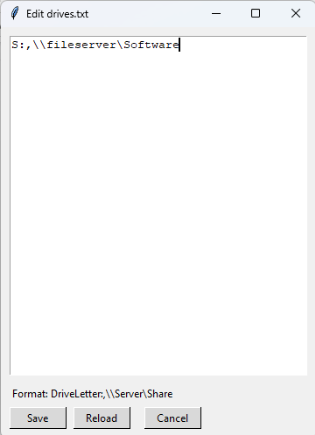
- Which discs are written to the drives.txt file? Drive.txt should contain your mapped drives for data migrations. You can update the file manually or automatically with “Edit” button
- Status.txt file. File contains current OPAgent status – it should be “connected”
- Disk mapping in Administrator mode. Sometimes mapped drives are not available in Administrator mode, “ELC” checkbox can modify "EnableLinkedConnections” registry key to solve this issue. Disks mapping should be identical for “Admin” and “Standard” modes. Reboot is necessary.
- OPAgent Token. It shows the current token in the OPAgent configuration. Check the token in your account on app.cloudsfer.com. If necessary, you can change the token and restart the service.
PS: You can save the test results for reference or share them with support if needed.