.png?width=100&height=100&name=Untitled%20design%20(8).png)
This document will help you install the On-Premises Agent.
The agent runs as a service, not as a desktop application. The Cloudsfer Agent can access mapped drives and remains active even when the user is logged off or the computer is restarted.
System Requirements:
- Microsoft .NET Framework 4.8
To check if .NET 4.8 is installed, use this link: How to check what version of .NET
- The user running the Agent service must be part of the local Administrators group. It is recommended to add the user directly to the Administrators group.
- Ensure the user has Log on as a Service Right.
- Increase the service start time by following the instructions here: Windows Increase Service Start Timeout. A system restart will be required.
Tip
You can verify your system's readiness by downloading and running this PowerShell script: Cloudsfer OPA Test.
Note: This script does not make any changes to your system.
- Download the ZIP file to your host server and extract its contents to a directory.
- Open and read the
ReadMe.txtfile for details on how to run the script. - To resolve any issues, follow this link Cloudsfer OPA Check List
We recommend logging into the computer with the same user account that will run the service and has access to the mapped drives.
Installation Steps
- Run the application. A pop-up window titled Cloudsfer On-Premises Agent Setup will appear. Click Next to continue.

- In the End-User License Agreement panel, select "I accept the terms in the License Agreement" and click Next.
Note: You must accept the license terms to proceed with the installation.
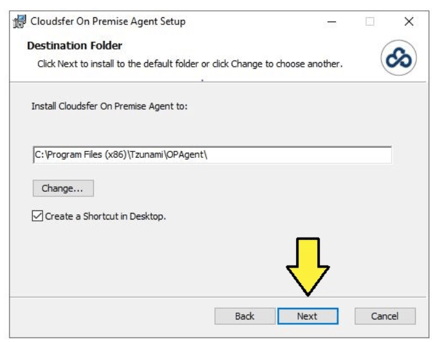
- Click “Next” to install to the default folder.
- Paste your unique Token provided by Cloudsfer. Give a name to your Agent. Then click “Next”.

- Service account details

- Enter the Username and Password.
- Format:[domain]\usernameor[computer name]\username - Enter the corresponding password.
- Click “Install” to begin the installation.


- Click the “Finish” button to exit the Setup Wizard.

After the Cloudsfer Agent starts, a window will appear showing installation properties and allowing you to load all mapped network drives.

The agent will automatically remap your drives each time it restarts. If you change your drive mappings, you must reload them using the tray application.
To access agent properties and reload mapped drives, right-click the Cloudsfer icon and select Show Properties.
Click Reload Mapped Drives to update the list.

Drives & Mapped Drives
- The user must be part of the domain to access mapped drives. Access is based on the user’s permissions.
- The agent can only see drives mapped by the user running the service.
- Drives mapped using the UI or CMD in user mode are visible. Drives mapped using CMD in administrator mode are not.
- If a mapped drive is not on a domain-connected computer, the username and password must be saved in the computer’s password vault.
- For migrations or backups to work properly, mapped drives must consistently use the same drive letters.
- After any changes to mapped drives (add/remove), use the Reload Mapped Drives option. Update any backup or scheduled migration plans accordingly.
Congratulations!
You’ve completed the On-Premises Agent installation.
Run the Cloudsfer On-Premises Agent, and a pop-up window will appear.
Check your taskbar: if the icon is green, the agent is running correctly. If it’s another color, wait until it turns green or contact us at support@cloudsfer.com.
Test the Connection to Cloudsfer
Click the following links to verify your connection:
- https://opatest.cloudsfer.com:32000/
- https://opatest.cloudsfer.com:33000/
- https://opatest.cloudsfer.com:33000/
If the test screen appears, you're ready to go!

Click here to go back to the On Premise to cloud migration guide. (Internal Note: Need to update guide once we have it ready & published.)
To continue with your migration please go to your Migration Dashboard and click “Download Exporter” to install Tzunami Exporter and extract the content into TDX format (Tzunami Deployer Export).

A pop-up window will appear with our list of supported source systems.
Select your source system by clicking on your desired system, for example click on Documentum, in order to download Documentum Exporter.

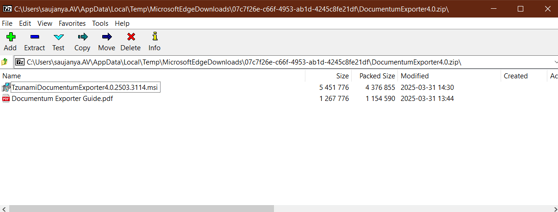
Once downloaded, open the ZIP file (e.g., DocumentumExporter4.0.zip) and extract the files.
Inside the ZIP, you’ll find the Exporter Guide in PDF format (Documentum Exporter Guide.pdf). Run the setup file (TzunamiDocumentumExporter.msi).
When prompted with a security warning, click Run.
Click here to read the step-by-step Exporter Installation Guide. (Internal Note: Need to Update the link once Exporter Installation Guide is published.)
If you have any further questions, please contact us at support@cloudsfer.com.
GOOD LUCK!