.png?width=100&height=100&name=Untitled%20design%20(8).png)
This guide will assist you in transferring content from multiple user accounts from Dropbox to Google Drive in an easy and efficient way using a CSV file from Cloudsfer.
To create a multi-user migration:
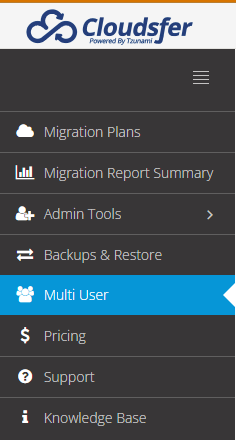
On the main page, press the “Multi-User” Button.
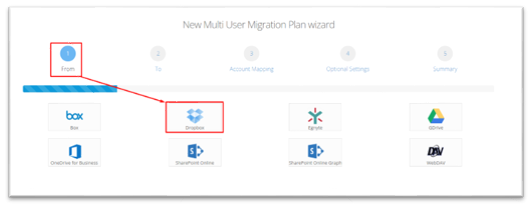
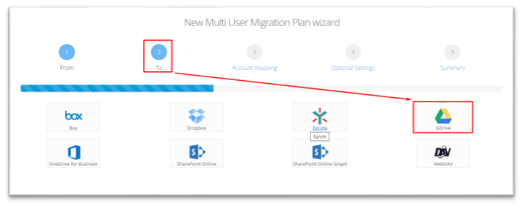
Step 1- From the screen, select Dropbox as a source system.
Step 2- To Screen, select Google Drive as a target system.
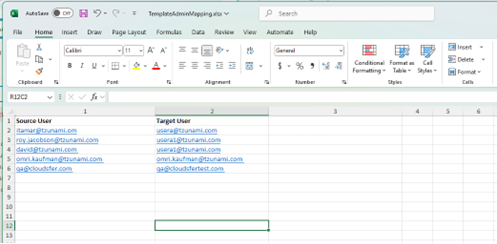
Step 3 – Account Mapping screen, provide an Excel sheet containing the users you wish to migrate. Upload that spreadsheet to the wizard.
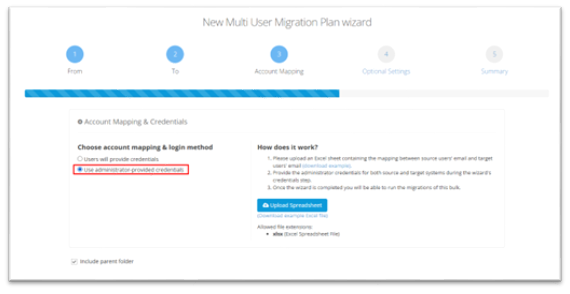
Note: You can download the sample Excel Sheet to map users.
Click “Continue” button.
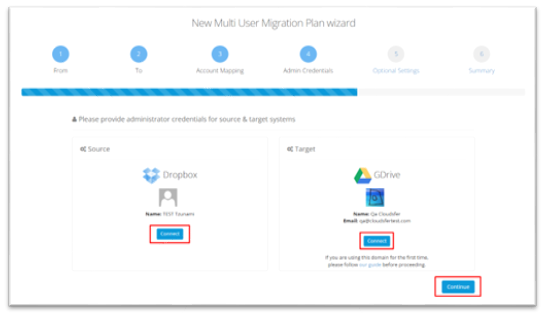
Step 4 – Admin Credentials - Click the “Connect” button on both Dropbox and GDrive and enter the Admin Credentials for both Dropbox and Google Drive. After successfully connecting, click the “Continue” button.
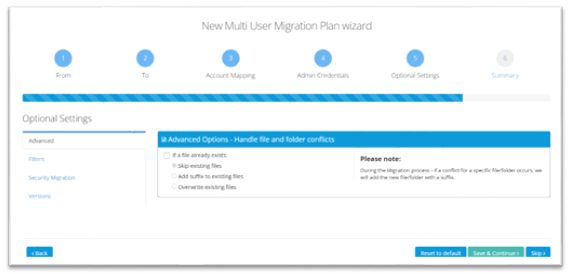
Step 5- Option Settings screen, manage Advanced Options, Filtering, Security, and Versions for migration. Click “Save and Continue” to create multi-user migration.
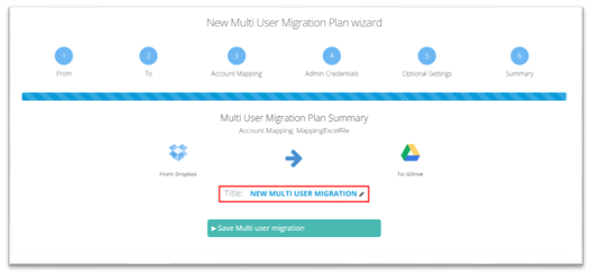
Step 6- Summary, edit and customize the multi-user migration name, and Click the “Save Multi-user migration” button.
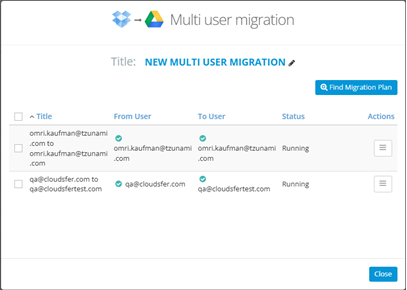
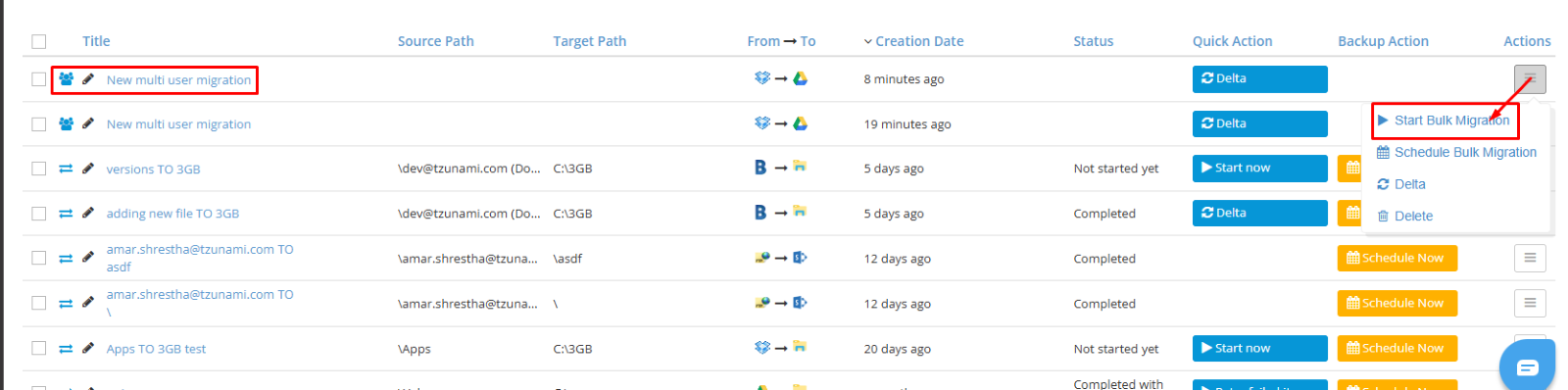
From the migration list, click Action button and either click “Start Bulk Migration” to start multiuser migration immediately or you can click “Schedule Bulk Migration” button to run the bulk migration on the scheduled time.
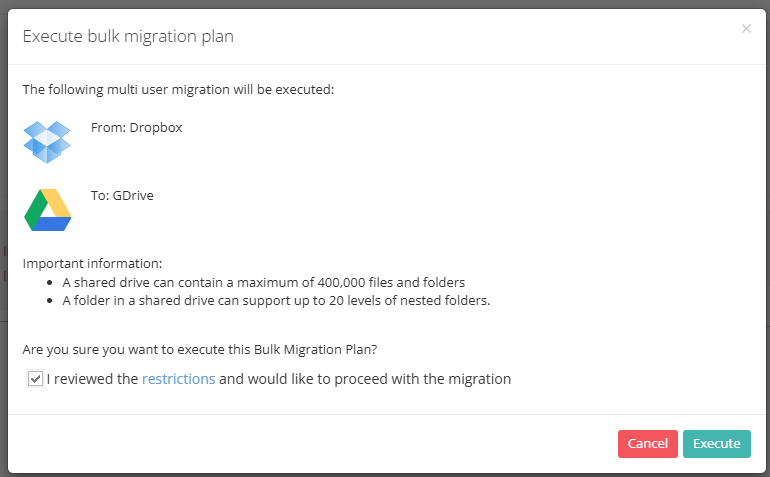
Select the “I review the restrictions and would like to proceed with the migration” option and click the “Execute” button.