.png?width=100&height=100&name=Untitled%20design%20(8).png)
Cloudsfer migration to Box Personal – Step-by-Step Guide
1. Select Your Target System
- You will now see a list of supported target systems.
- Choose Box (Personal) as your target destination.

2. Enter Box Account Details
- A pop-up window will appear prompting you to enter your Box account credentials and Authorize.

- Select 'Grant Access to Box' to provide access to Cloudsfer to you Box account.
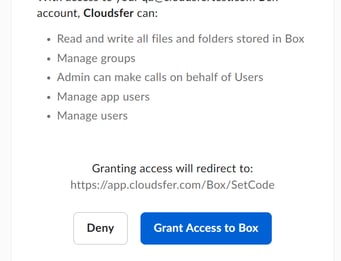
3. Access Your Box Content
- Once authenticated, you will be automatically redirected to your Box content structure.

4. Choose Destination Path
- Browse the Box content structure.
- Select the folder or path where you want the data to be transferred.

5. Configure Optional Settings
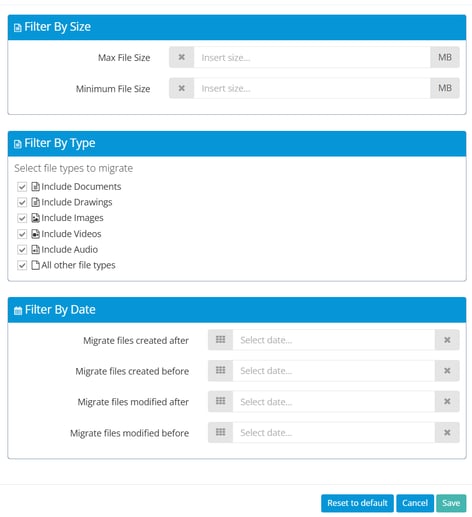
- Click on 'Option' button, where you can apply filters to customize your migration:
- Advanced Options to handle file and folders conflict.
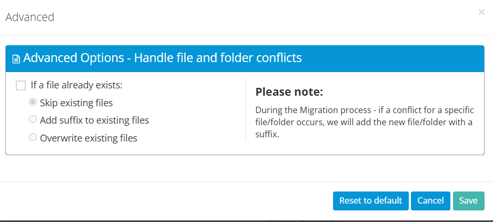
- Filter Option to Filter by Size, Type or Date.
- Versions option to handle file versioning.
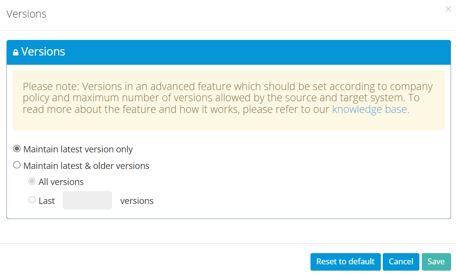
- Advanced Options to handle file and folders conflict.
- After configuring your options, click Save and Continue.
- If you do not wish to apply any options, simply Skip the process.
6. Finalize Your Migration Plan
- Name your migration plan.
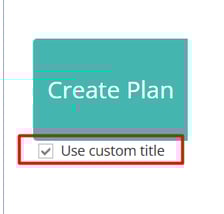
- Click on 'Create Plan' to create the migration plan.
- Click on 'Start Now' to start the migration.

Need Help?
If you require further assistance, feel free to contact our support team at
📧 support@cloudsfer.com