.png?width=100&height=100&name=Untitled%20design%20(8).png)
This guide will assist you in managing Shared Permissions.
To manage security settings, please follow the steps below:
-
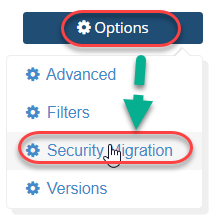
After selecting the source and target, click on the Options button and select Security Migration.
-
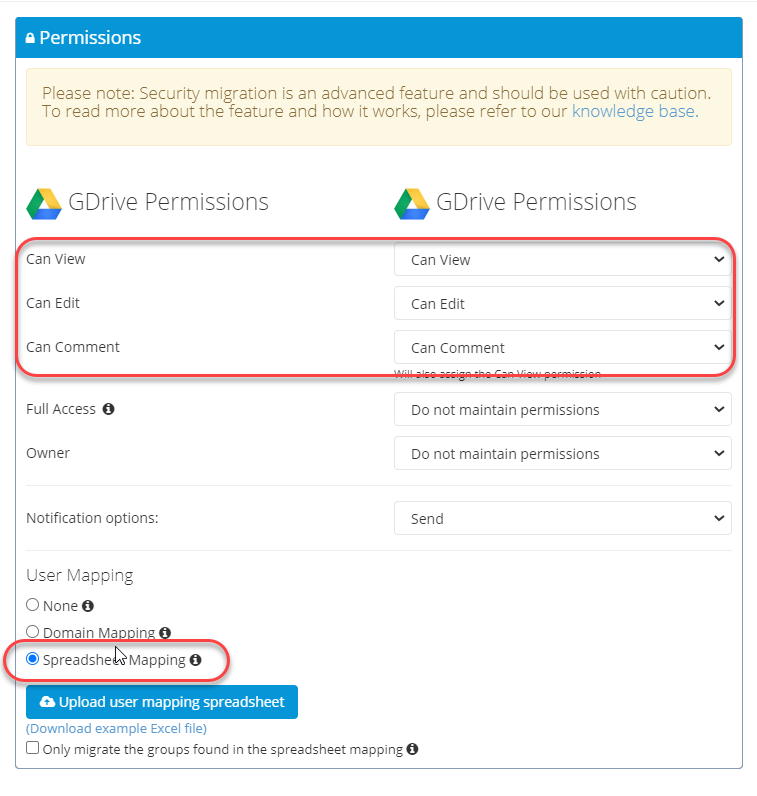
Map the permissions as shown in the example below (e.g., Google Drive to Google Drive).
-
Select the “Spreadsheet Mapping” option.
-
Click “Download example Excel file.”
-
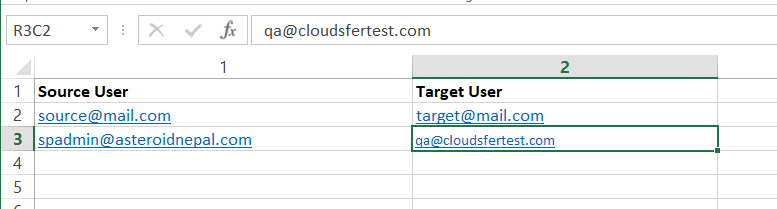
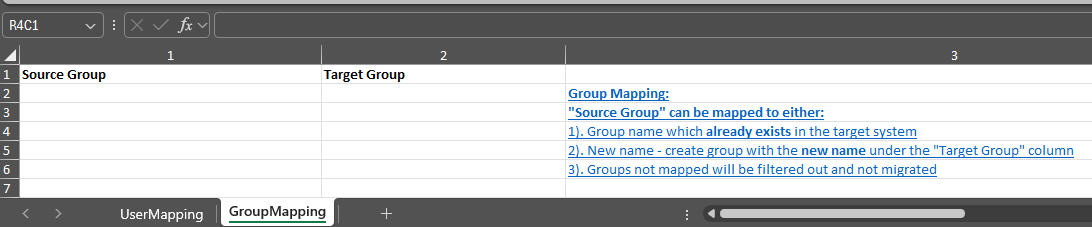
Open the Excel file. Add your users and group information to the spreadsheet to manage Shared Permissions, then save the file as shown in the example.
-
Click “Upload user mapping spreadsheet” and upload the Excel file.
-
Click the Save button.
-
Finally, click the “Create Plan” button. This will allow you to preserve the Shared Permissions during migration.