.png?width=100&height=100&name=Untitled%20design%20(8).png)
In this article we will explain how to migrate only documents, using Cloudsfer's built-in filters.
Once you connect to the Cloudsfer application, click on the "personal migration" window, as described below:

Then enter the needed source and target system.

Using this migration Cloudsfer will automatically filter out all content which is not a supported document.
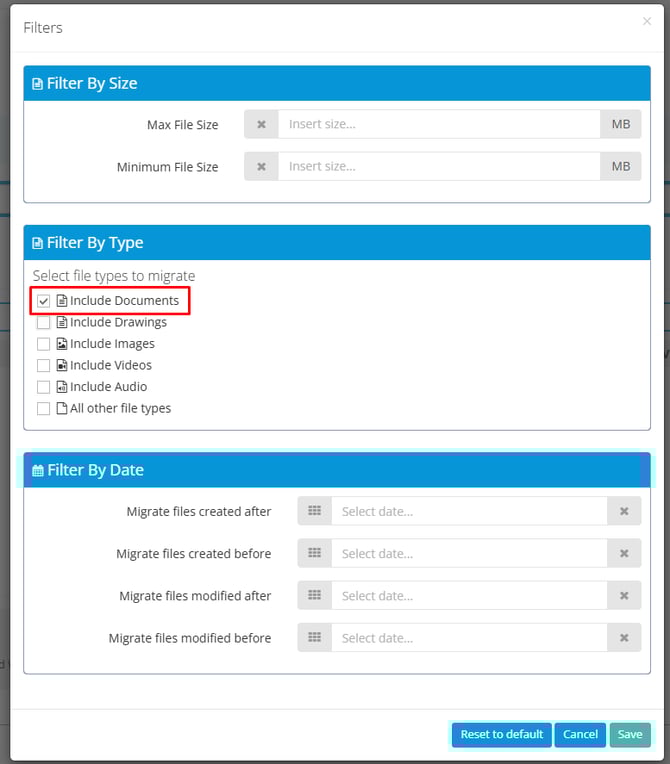
The supported document types: DOC, DOCX, DOCM, DOTX. GDOC, CSV, XLSX, XLSM, XLSB, XLS, XML, PDF, PPTX, PPTM, PPT, TXT, RTF, XPS.
After setting this option in the migration plan, please continue with the migration as usual.
The supported systems for Personal accounts can be found here.
The supported systems for Business accounts can be found here.
If you need further assistance, don't hesitate to contact us at Support@cloudsfer.com