.png?width=100&height=100&name=Untitled%20design%20(8).png)
Protecting your egnyte data using Cloudsfer's backup solution
Frequently ensuring the backup of your Egnyte files and folders is essential to safeguard your valuable business data. By utilizing Cloudsfer, you have the capability to automate the backup process via scheduled routines and securely store your data on your own cloud storage platforms such as Amazon S3. This guarantees swift data retrieval and helps mitigate potential interruptions resulting from accidents, system malfunctions, or cybersecurity risks.
How to backup Egnyte with Cloudsfer’s solution – step by step guide:
Step 1: Select the ’Backup & Restore’ tab.

NOTE: Pay attention that you are in the window with the color turquoise for backup.

Step 2: Select 'Start Backup’.

Step 3: Select source system ‘Egnyte’ and click ‘Connect’.

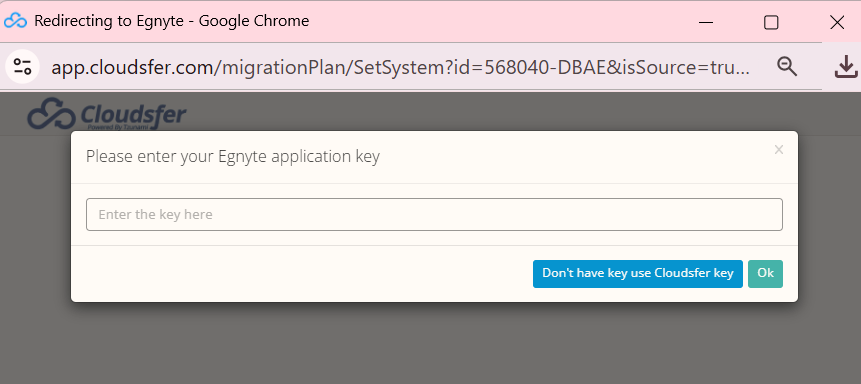
When connecting to Egnyte for the first time you will need to allow Cloudsfer's application to access your Egnyte account.
Please make sure you have Admin access/collaboration on the backed up data.
A pop-up window will appear. Enter your account details.
Click to allow access for Cloudsfer.
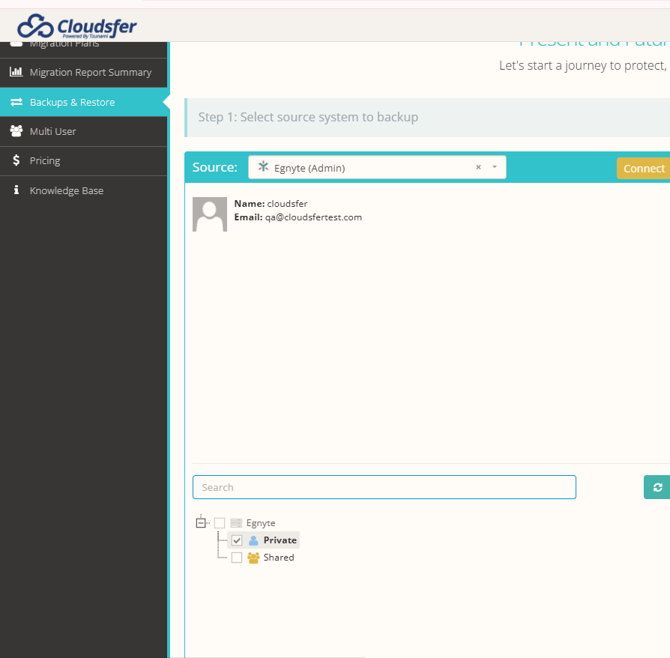
Step 4: Choose the data you wish to backup.
Step 5: Select target system ‘Amazon S3’ and click ‘Connect’.

A pop-up window will appear. Enter your account details.
Click 'Submit' to allow access for Cloudsfer.

Step 6: Select the path you wish the content to be transferred to and click ‘Create Backup’.


Step 7: Write a name for your backup data and click 'ok'.

Step 8: You can select a time to run the backup for the first time (optional).
One Time backup is according to your browser time zone.

On the bottom section you will need to insert a mandatory backup schedule interval daily/weekly according to your time subscription.
Please note the backup schedules are according to UTC time zone.

Step 9: Check ‘Sync Enabled’ and ‘I reviewed the restrictions’.
Step 10: Click on ‘Schedule’.
Step 11: Scroll down and click on the name of your backup data. You will move to the restore dashboard.

You will be able to determine by marking whether the folder is in progress, deleted, or damaged.
Please note:
Cloudsfer backup is only available as a part of the Standard and Pro Subscription package.
Subscription packages can be purchased here Cloudsfer Subscription
For more information, visit our website or contact Cloudsfer support team: support@cloudsfer.com.