.png?width=100&height=100&name=Untitled%20design%20(8).png)
Overview
Cloudsfer’s File System integration enables fast and secure data migration to and from local file systems. The Cloudsfer On-Premises Agent (OPA) facilitates access to mapped drives and remains active even after user logoff or system restart, running as a background service.
System Requirements
- Operating System: Windows 7, Windows Server 2008 or later
- Software: Microsoft .NET Framework 4.8
- Permissions: Installer must be a member of the Local Administrators Group
- Network Configuration: Ensure outbound port range 32,000–34,000 is enabled for communication with the Cloudsfer Agent.
Integration Steps
1. Initiate File System Integration
- In the Cloudsfer interface, select “File System” as your source.
- Click Connect.

2. Install the Cloudsfer On-Premises Agent
- A list of available Cloudsfer On-Premises Agents will appear. Click Open.

- If this is your first migration from a local file system, you must install the agent:
- Click Add New Agent

- Click Copy Token

- Click Download Agent to download the installer

- Click Add to add the token on Cloudsfer.

- Click Add New Agent
3. Run the Installer
- Launch the downloaded file:
CloudsferOnPremiseAgent.msi - In the Welcome screen, click Next

- Accept the End-User License Agreement, then click Next

- In the Destination Folder Setup panel:
- Click Next to proceed with the default location, or
- Click Change to select a custom installation path, then click Next

- Paste your unique Token provided by Cloudsfer
- Assign a name to your agent and click Next

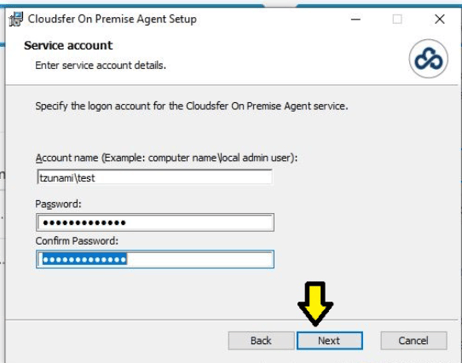
- Enter login credentials for the service:
- Username format:
[domain]\[username]or[computer name]\[username] - Password: Enter the corresponding password
- Ensure the user is part of the Local Administrators Group
- Username format:
- Click Install, then Finish to complete the setup
Post-Installation Configuration
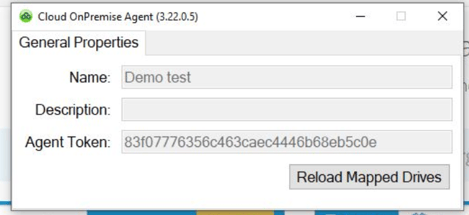
- Once installed, the agent will start automatically and display installation properties
- All mapped network drives will be loaded
- The agent will automatically remap drives upon restart
- To update drive mappings:
- Right-click the Cloudsfer tray icon
- Select Show Properties

- Click Reload Mapped Drives
Mapped Drives Guidelines
- The user must be part of the domain to access mapped drives
- Only drives mapped via UI or CMD in user mode are visible to the agent
- Drives mapped using CMD in administrator mode will not be detected
- For non-domain computers, credentials for mapped drives must be saved in the Windows Credential Manager
- Ensure consistent drive letter assignments for successful migration
- After modifying mapped drives (adding/removing), use Reload Mapped Drives
- Update any scheduled migration or backup plans accordingly
Testing Agent Connectivity
To verify the agent’s connection to Cloudsfer, visit the following URLs:
- https://opatest.cloudsfer.com:32000/
- https://opatest.cloudsfer.com:33000/
- https://opatest.cloudsfer.com:34045/

If the test screen loads successfully, your agent is ready to use.
Starting Your Migration
- Click the Add button in the browser
- Your file system’s folder and drive structure will be displayed
- Select the folder or drive you wish to migrate
Supported Features
- Preservation of metadata: Creation and modification dates are retained
- Delta migrations: Transfer only new or modified files
- Backup migrations: Customize backup settings to suit your needs
- Overwrite options: Replace existing files with updated versions during migration
Get Started
Create your free Cloudsfer account and begin migrating your data within seconds.
For more information on how to set your migration please see the following guide.
You may also find a recording of our Webinar- introducing File system to Cloud migration.