.png?width=100&height=100&name=Untitled%20design%20(8).png)
This document will help you install the exporter—specifically, the Documentum Exporter.
Click [here] to view all the system requirements for downloading the exporter. (Internal Note: Need to update link on the guide is published.)
-
Run the Tzunami Exporter Setup (
Tzunami Documentum Exporter Setup.msi).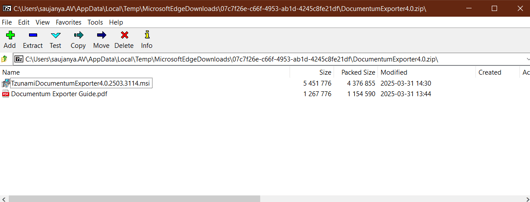
-
A pop-up window will appear with a File Download – Security Warning. Click Run.
-
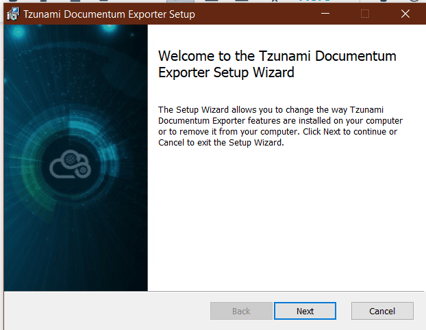
The Tzunami Documentum Exporter Setup Wizard (Welcome window) will launch. Click Next to proceed.
-
In the End-User License Agreement panel, select "I accept the terms in the License Agreement" and click Next to continue.
Note: You must accept the license terms to proceed with the installation.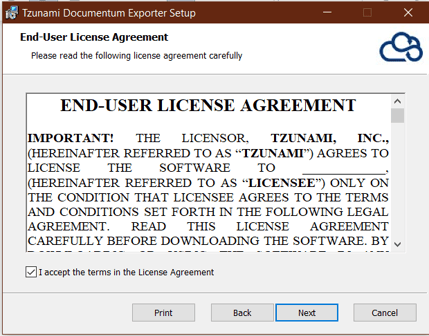
-
In the Custom Setup panel, do one of the following:
- To accept the default destination folder, click Next.
- Or click Browse, select a destination folder, click OK, and then click Next.

-
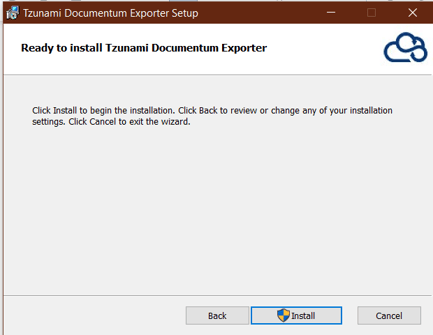
In the Ready to Install Tzunami Documentum Exporter panel, click Next.
-
In the Completed Tzunami Documentum Exporter Setup Wizard panel, click Finish to exit the wizard.

Congratulations! You have successfully completed the exporter installation.
Now, run the application to begin exporting your data.
- Click [here] to return to the On-Premises to Cloud Migration Step-by-Step Guide.
(Internal Note: Need to update link on the guide is published.) - Click [here] to learn how to export your on-premises data. (Internal Note: Need to update link on the guide is published.)
If you have any questions, please contact us at Support@Cloudsfer.com.
GOOD LUCK!